


AI tools are everywhere. From AI writing assistants to automation bots, it seems like there’s an AI tool for everything. But do they actually help in day-to-day life, or are they just overhyped tech trends or should I call it the AI bubble?
To find out, I spent a month testing AI tools—but with a practical, no-nonsense approach. My goal wasn’t to use as many AI tools as possible but to find the ones that were actually useful and necessary. I wanted to see if AI could genuinely improve productivity, reduce repetitive tasks, and enhance creativity without replacing my own thinking.
Since most AI tools operate on a subscription model, I prioritized free versions or those that are widely accessible to the average person. Because at the end of the day, these tools are meant to be used by humans. And that’s exactly why you’re reading this on Unrola—a platform built for everyday users, where you get AI apps and tools to do more of what you love 🎯, live better 😊, and play even more ⚽.
Before diving in, I set some clear boundaries:
🚫 I didn’t use AI to write my work for me. Instead, I used it for:
✔️ Brainstorming and strategy discussions
✔️ Repetitive tasks and automation
✔️ Technical troubleshooting
✔️ Excel formulas and workflow optimization
The fully AI-powered tools I used and how they helped me in my daily life
After a month of testing AI tools, I can confidently say this—some of them made my life significantly easier, while others felt like solutions in search of a problem. I wasn’t trying to replace my own thinking or automate every part of my day. Instead, I wanted to see where AI could actually add value without making me dependent on it.
For me, AI worked best in four key areas:
- Brainstorming and strategy discussions
- Repetitive tasks and automation
- Technical troubleshooting
- Excel formulas and workflow optimization
Let’s discuss each tool one by one.
ChatGPT
The very first and one of my most favorite generative AI tools is ChatGPT.
I know you were expecting this from the start—and why not? ChatGPT is an incredible tool built by OpenAI!
I won’t hesitate to admit that before its launch, I had never used any AI apps or tools. That was then. And now, AI is an integral part of my workflow that helps me tackle tasks and boost my productivity.
I have a ChatGPT Plus subscription, and it’s easily the AI tool I’ve used the most. But the thing is, I don’t use it to write articles, emails, or reports. Instead, I rely on it for brainstorming ideas, breaking down complex topics, and solving technical issues.
For example, I was struggling with an Excel formula that needed to extract meta title (the main headline you see on Google search results) and meta description (the short summary below the title that tells you what the page is about) from a list of URLs. Instead of spending hours doing it manually, I described the issue to ChatGPT, and in seconds, it gave me the exact formula I needed.
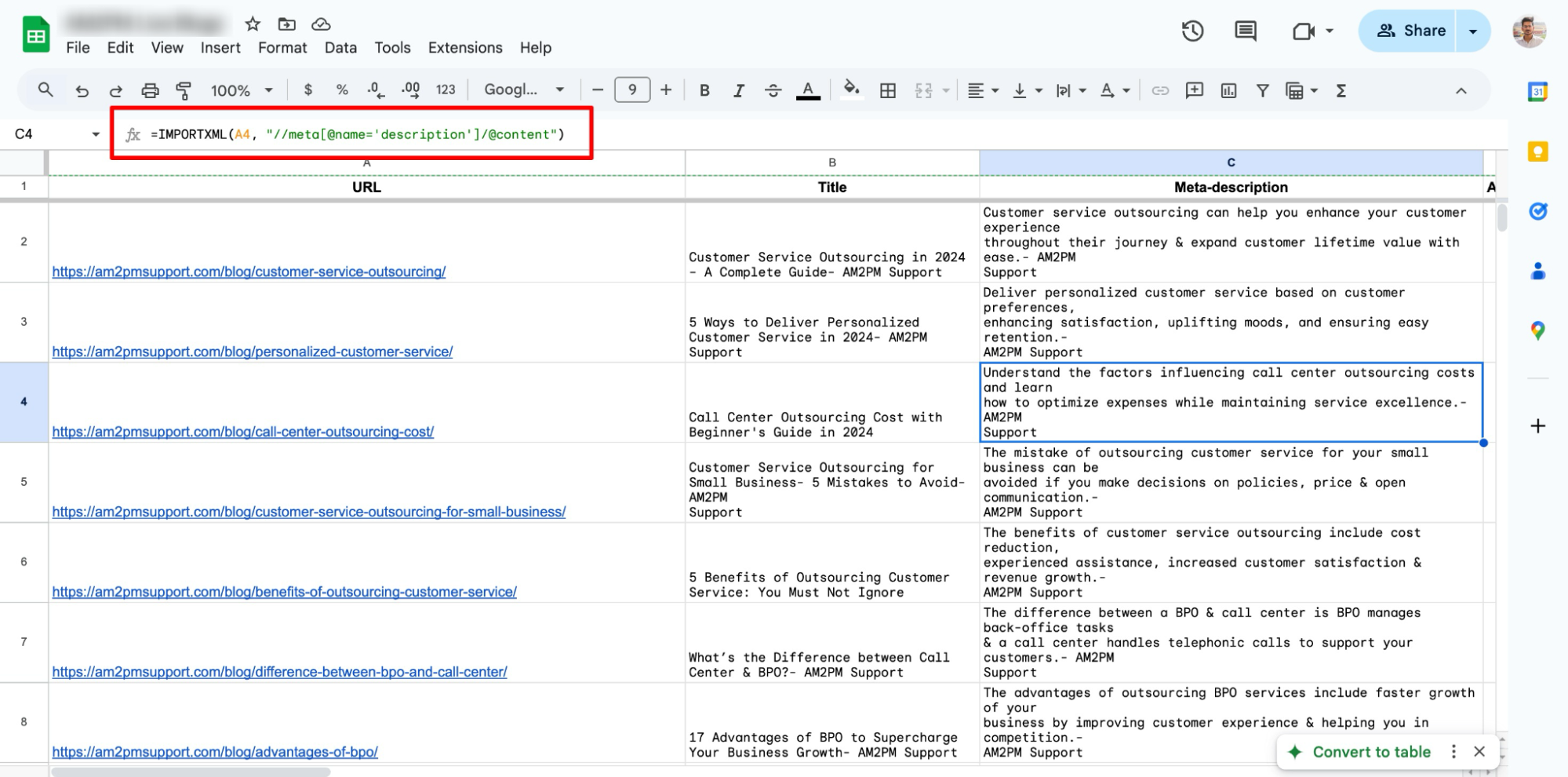
Just to share the formula for
- Meta title is =IMPORTXML(A2, “//title”)
- Meta description is =IMPORTXML(A2,”//meta[@name=’description’]/@content”)
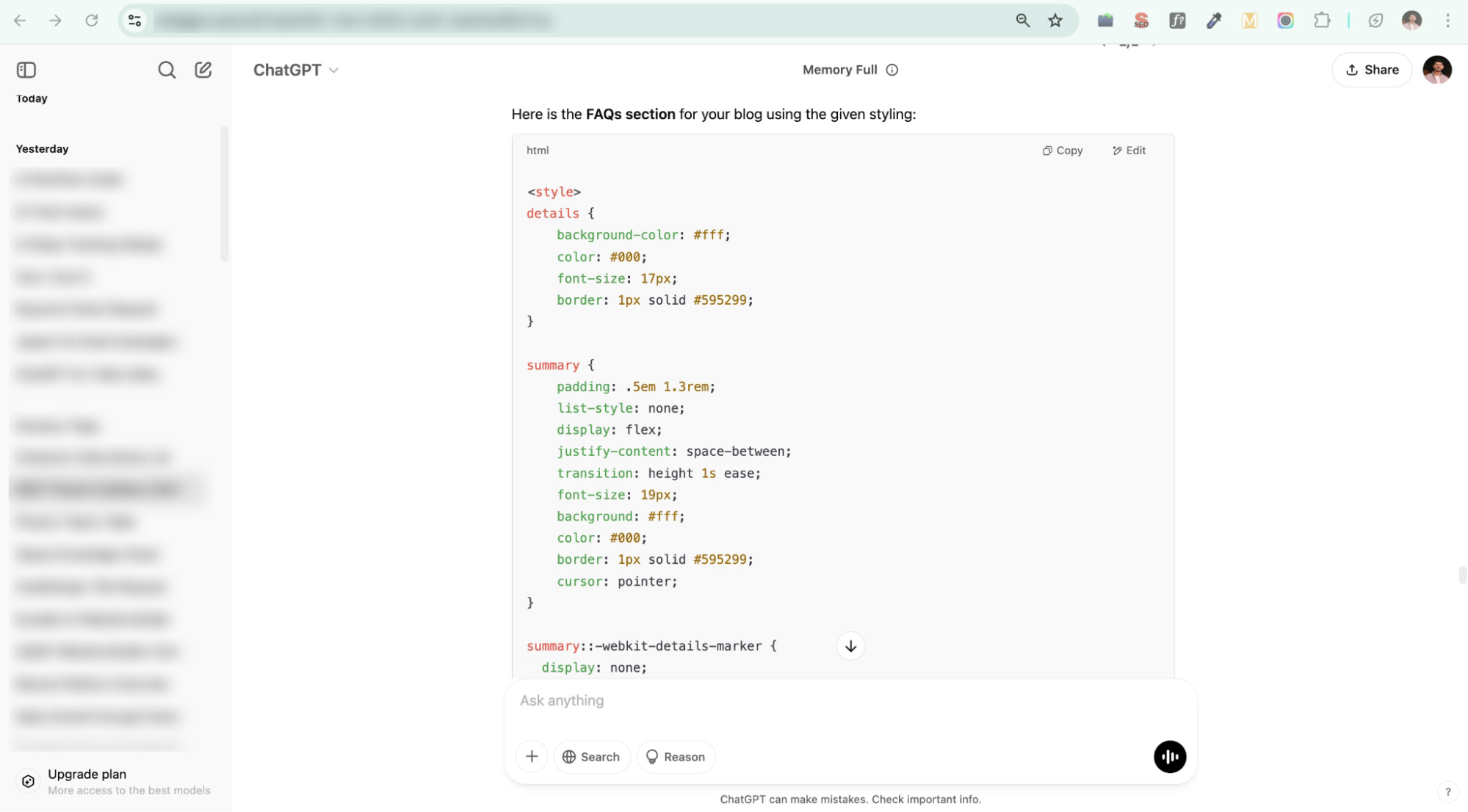
The same thing happened when troubleshooting a HTML script—I pasted the HTML code, and ChatGPT quickly pinpointed the issue and provided a fix.
And that’s not all—I use ChatGPT for many other things as well, like:
Learning new concepts quickly
Whether it’s understanding a complex topic or getting a simplified explanation of a technical term, ChatGPT helps break things down in a way that’s easy to grasp.
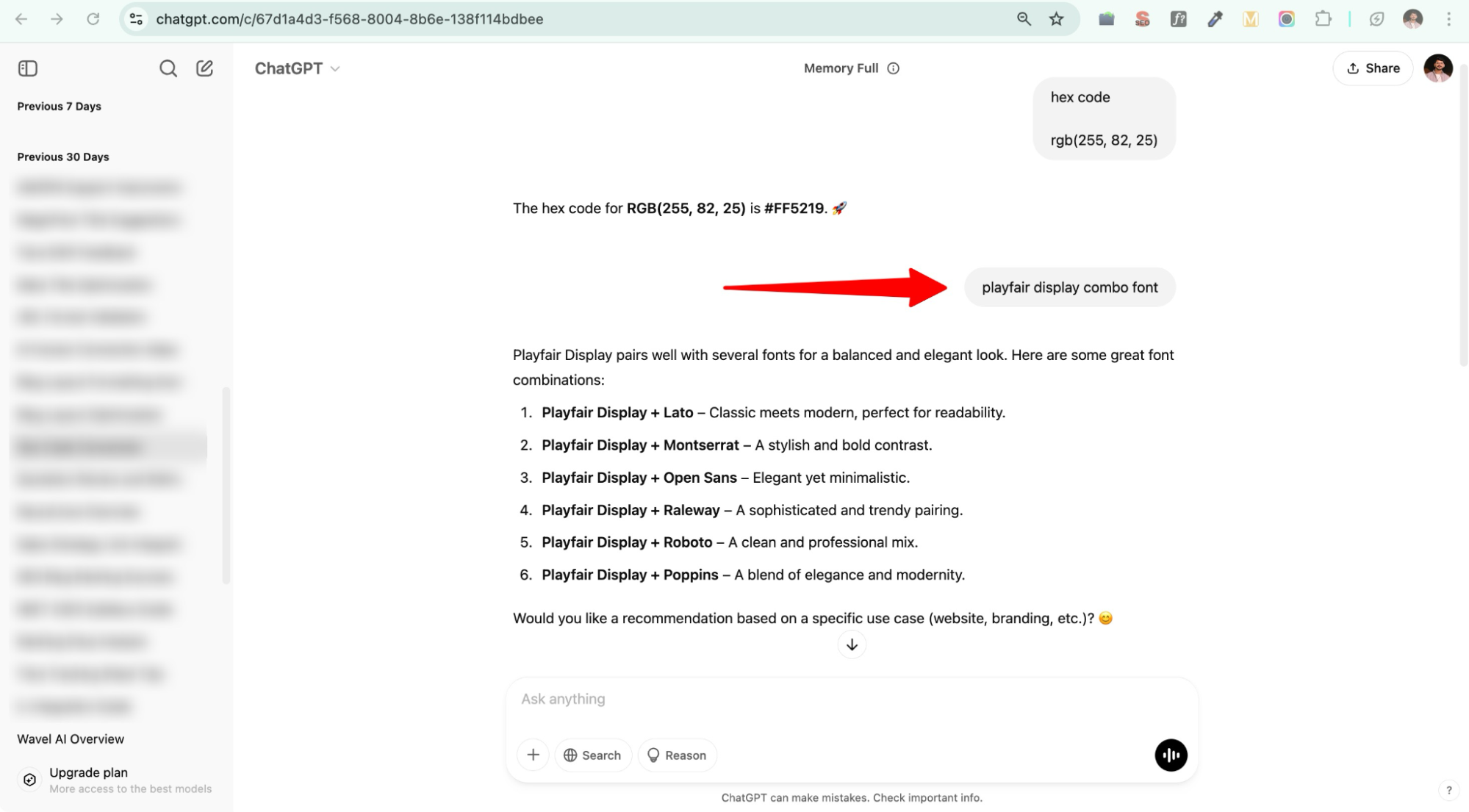
Exploring alternative choices
Sometimes, we need a fresh perspective—whether it’s picking the right font, refining an idea, or solving a problem from a different angle. ChatGPT helps by suggesting alternatives I might not have considered, making decision-making easier and more creative.
Drafting structured responses
Whether it’s crafting a professional email, summarizing key points for a meeting, or even responding to tricky messages, ChatGPT helps me structure my thoughts more clearly.
Quick research assistance
Instead of scrolling through multiple sources, I use ChatGPT to get a well-rounded summary of topics. Of course, I always verify the information, but it saves a lot of time in the initial research phase.
Coding help
I’m not a developer, but when I need to tweak something on a website or troubleshoot an issue, ChatGPT acts as a handy coding assistant. From basic HTML edits to explaining error messages, it’s been surprisingly useful.
Idea validation
Whenever I have a rough idea, I run it through ChatGPT to see if I’m missing anything. It’s not about getting approval from AI, but more about refining my approach based on its insights.
The real benefit? It saved me time. I still had to understand and apply the solutions, but it cut down the trial-and-error process significantly.
Oh, and one important note: whenever I used ChatGPT for anything unpublished or sensitive, I kept chat history turned off to ensure my data wasn’t being used to train the model.
Otter.ai
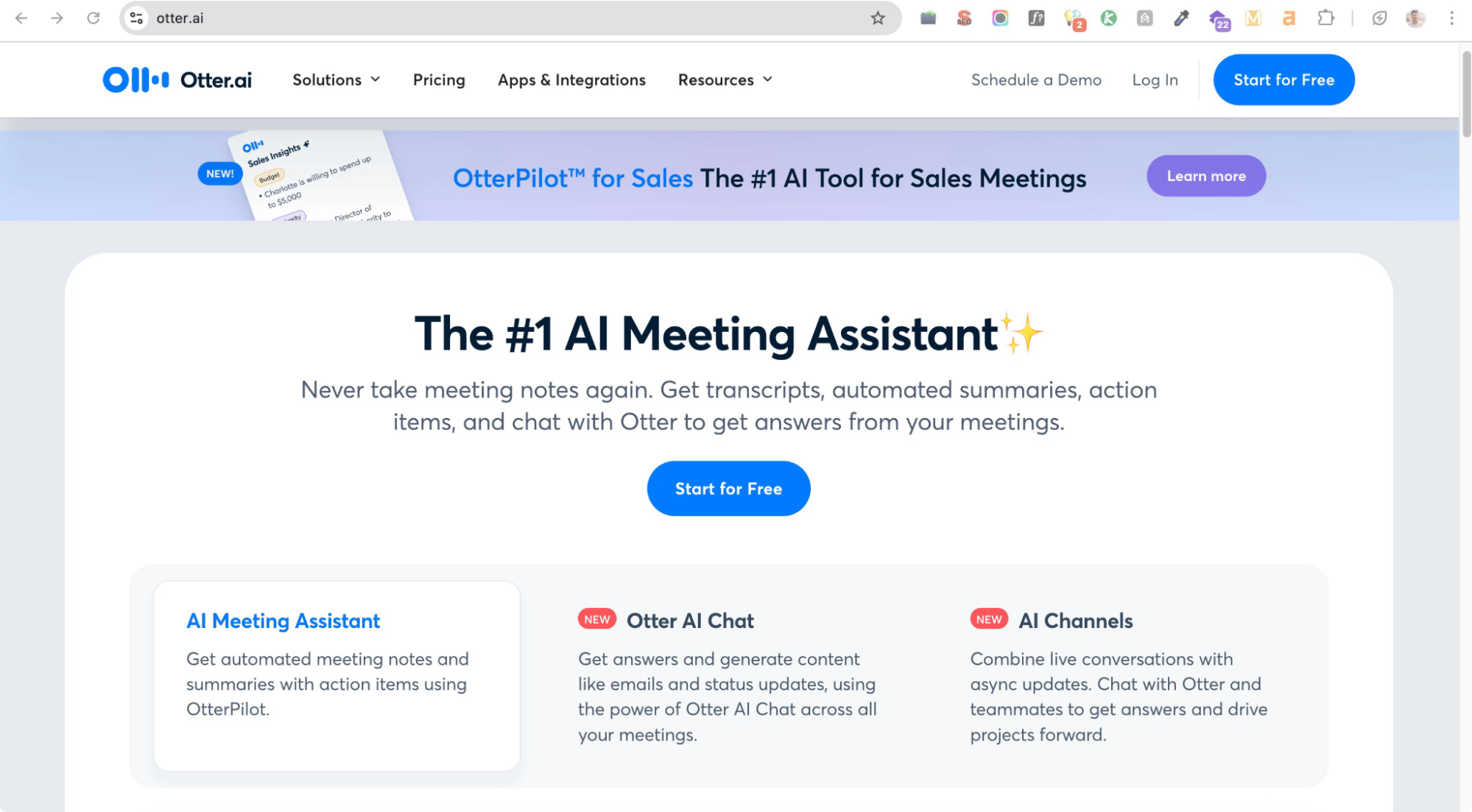
The second AI tool I used is Otter.ai, an AI-powered note-taking and transcription tool that records, transcribes, and summarizes conversations in real time.
If you’ve ever been in a fast-paced meeting, you know the struggle: trying to absorb information, contribute to the discussion, and simultaneously take notes. It’s nearly impossible to do all three well. Either you focus on writing everything down and miss key moments of the conversation, or you stay engaged and risk forgetting important details later.
That’s exactly the problem I was facing—especially in brainstorming sessions where ideas flow quickly and decisions get made on the spot. I needed a way to capture everything without constantly typing or manually transcribing recordings.
That’s when I turned to Otter. Instead of frantically jotting down notes, I let Otter do the work for me and focused on the discussion.
How Otter helped me in my daily workflow?
Let’s see some examples, so you get a better understanding of this.
Real-time transcription that’s (mostly) accurate
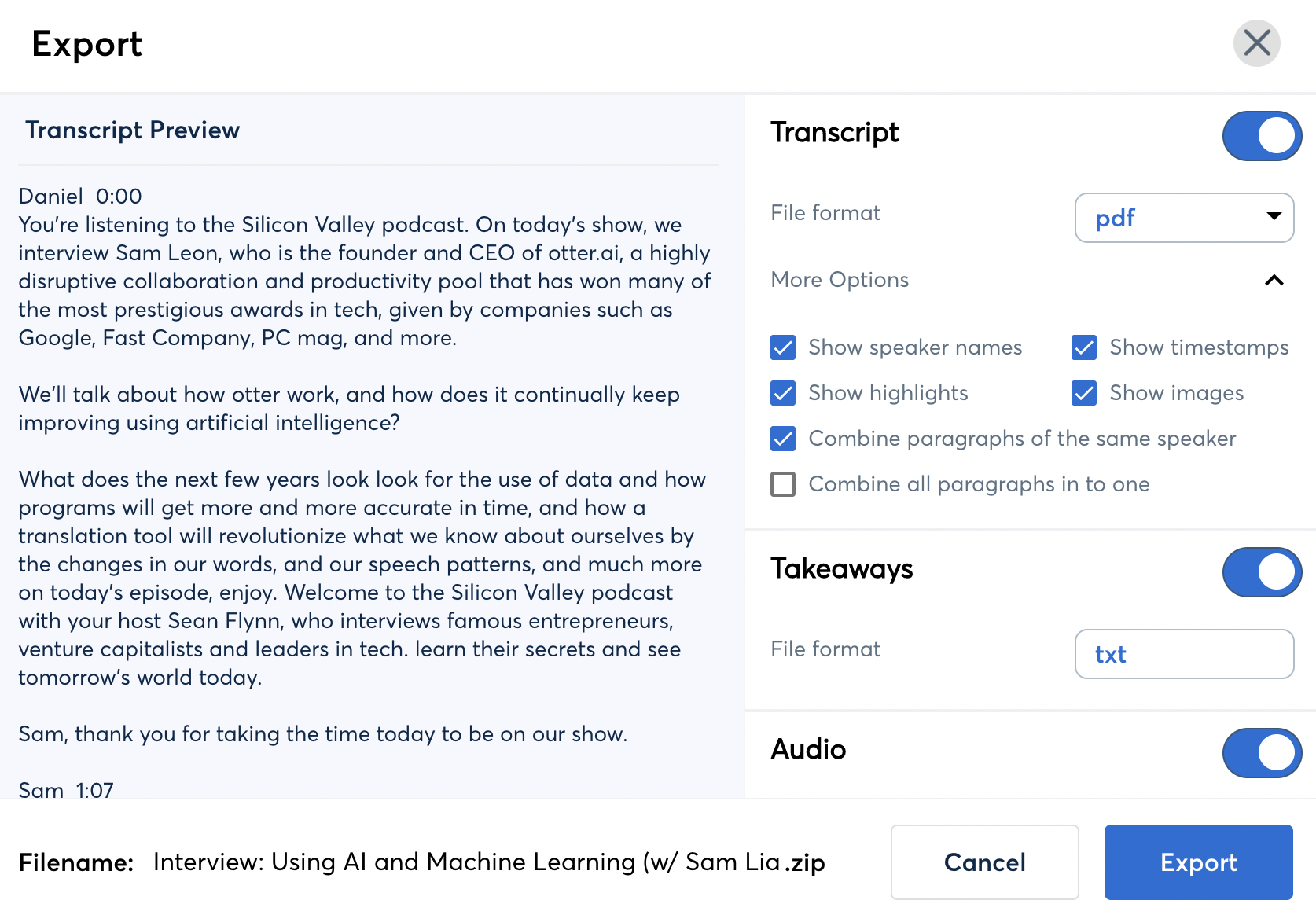
During virtual meetings, I activated Otter, and it automatically transcribed everything being said. While it wasn’t 100% perfect, it was accurate enough that I could follow along and make quick corrections if needed. It also differentiates between speakers, making it easier to track who said what.
Searchable, organized meeting notes
Instead of skimming through long recordings, Otter allowed me to search for specific keywords. If I needed to recall a decision about deadlines, I’d just type “deadline” into the search bar, and it instantly highlighted every mention of the word. This saved me from replaying entire meetings just to find one key point.
{{image of searching keywords in otter notes}}
Summarized key points
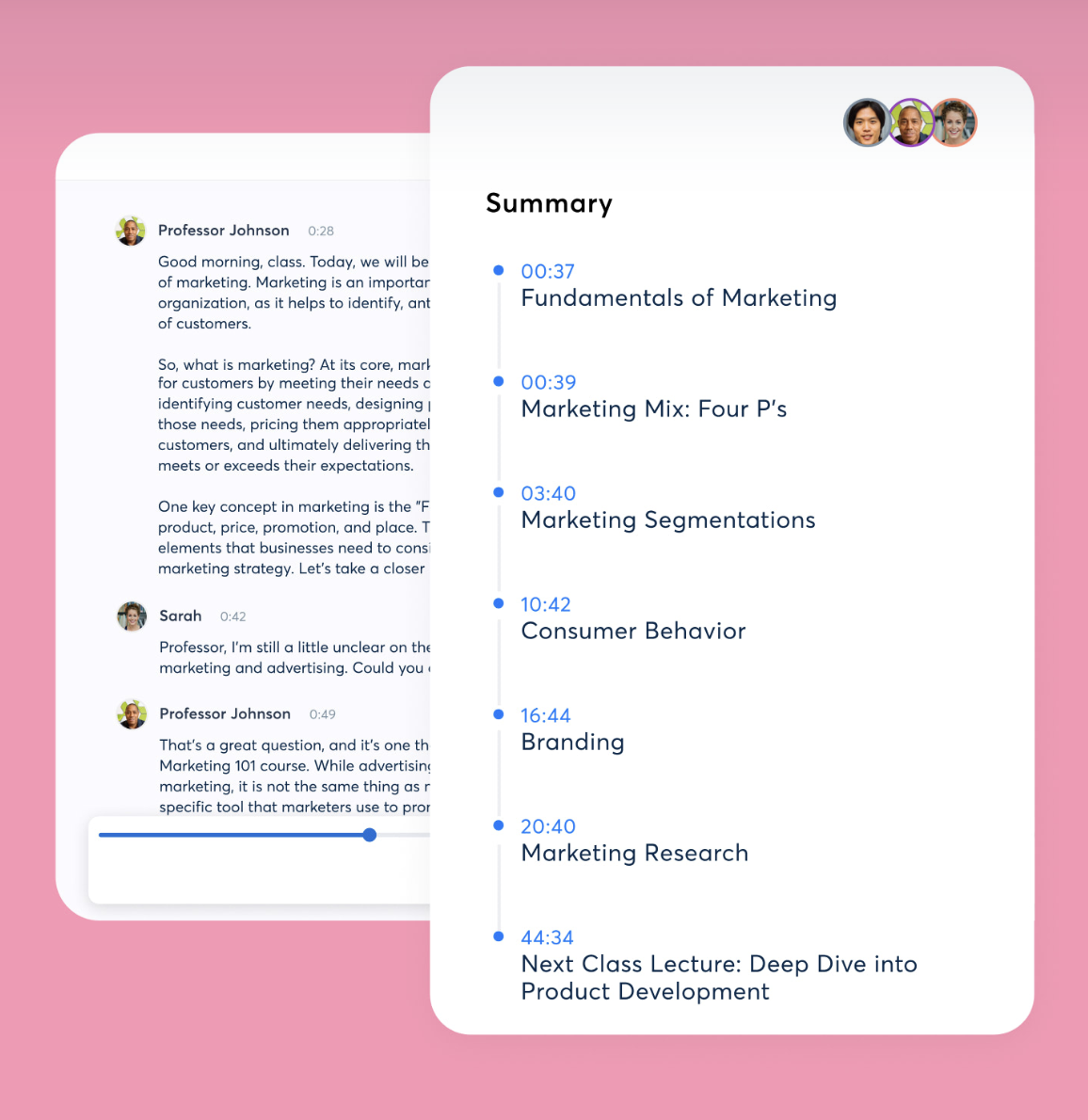
One of Otter’s standout features is its AI-generated summaries. It automatically condenses long meetings into bullet points, making it easier to review action items. I found this useful when catching up on meetings I couldn’t attend—rather than listening to a full hour of discussion, I could scan the summary in two minutes.
Hands-free note-taking for better engagement
Since Otter handled the note-taking, I was able to fully engage in conversations. I wasn’t distracted by typing or worrying about missing details. After the meeting, I could go back, clean up the transcript if needed, and extract the important points.
The catch: Free vs. Paid version
While Otter is a game-changer, there’s a catch: the free plan has limitations. It offers only 300 minutes of transcription per month and limits each conversation to 30 minutes of live transcription. If you attend frequent long meetings, you’ll likely need a paid plan.
For this experiment, I had access to a paid subscription (courtesy of Unrola), which allowed me to explore its full potential without limitations. If I were using the free version, I’d need to be strategic about when to use it to maximize its benefits. Just like using WiFi freely at home versus saving mobile data on the go.
Perplexity AI
Hope you’re enjoying this list and finding it useful!
Now, let’s talk about something we all do daily—Googling things.
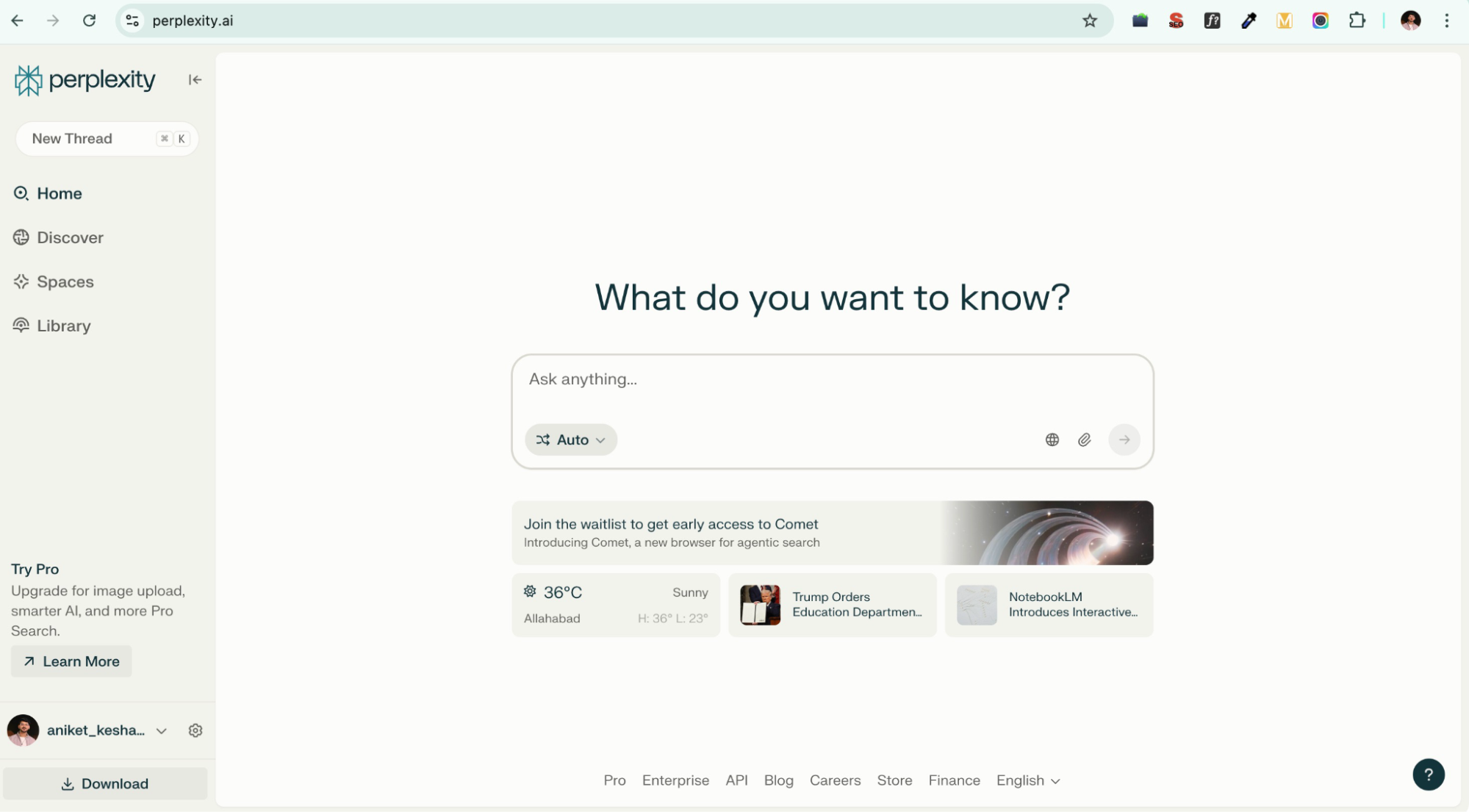
Google is great, but it can also be overwhelming. You search for something, and suddenly you’re sifting through 10 different articles, each saying something slightly different. Then, you have to piece together the real answer. That’s where Perplexity AI made a difference for me.
Instead of just listing links, it acts like a research assistant—giving concise, well-sourced answers in one place. When I was comparing different AI project management tools, Perplexity AI quickly summarized the key differences and even cited its sources, saving me from opening a dozen tabs.
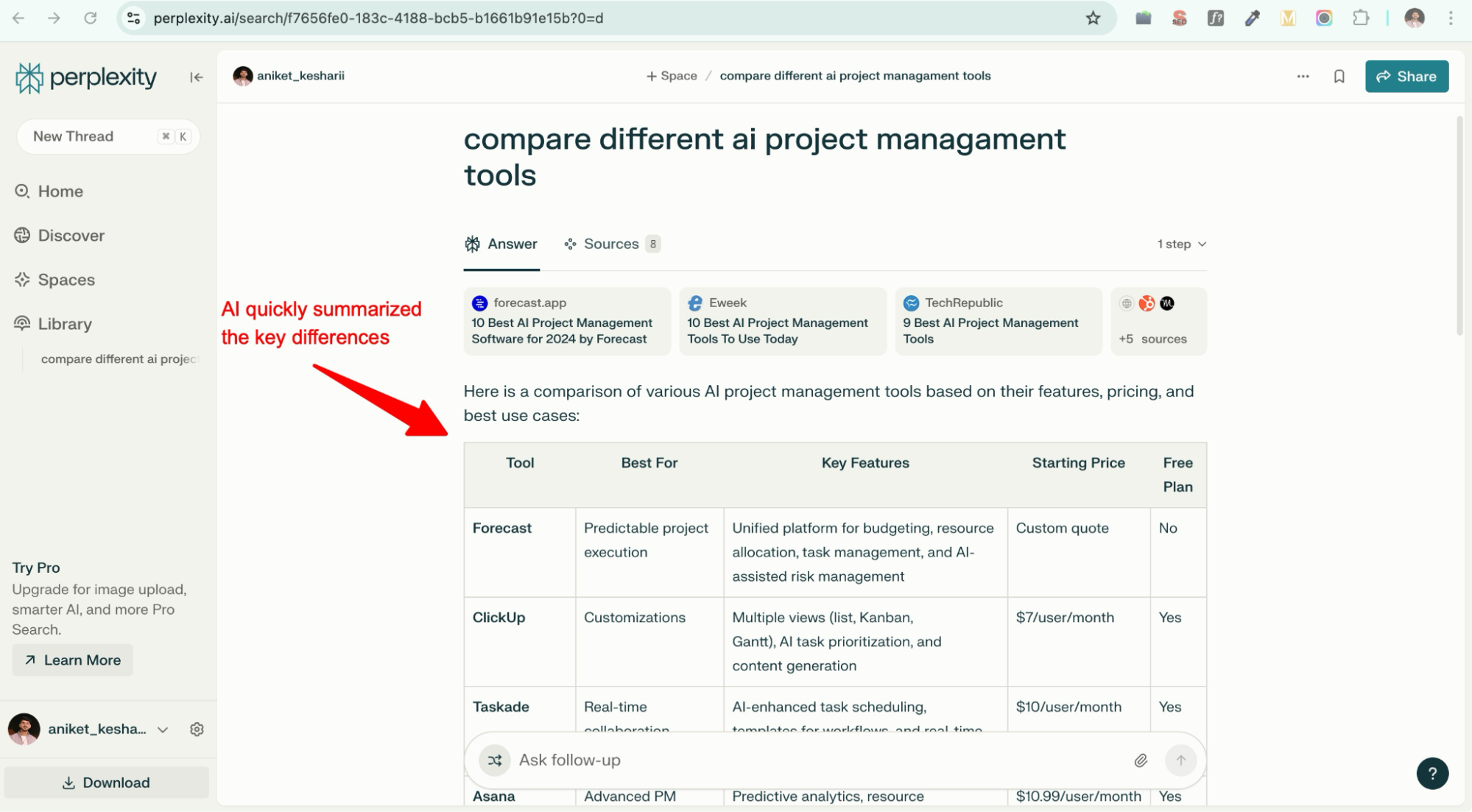
Is it always perfect? No, I still double-check some details. But it’s way faster than scrolling through pages of search results. And the best part? It’s completely free.
MyMind
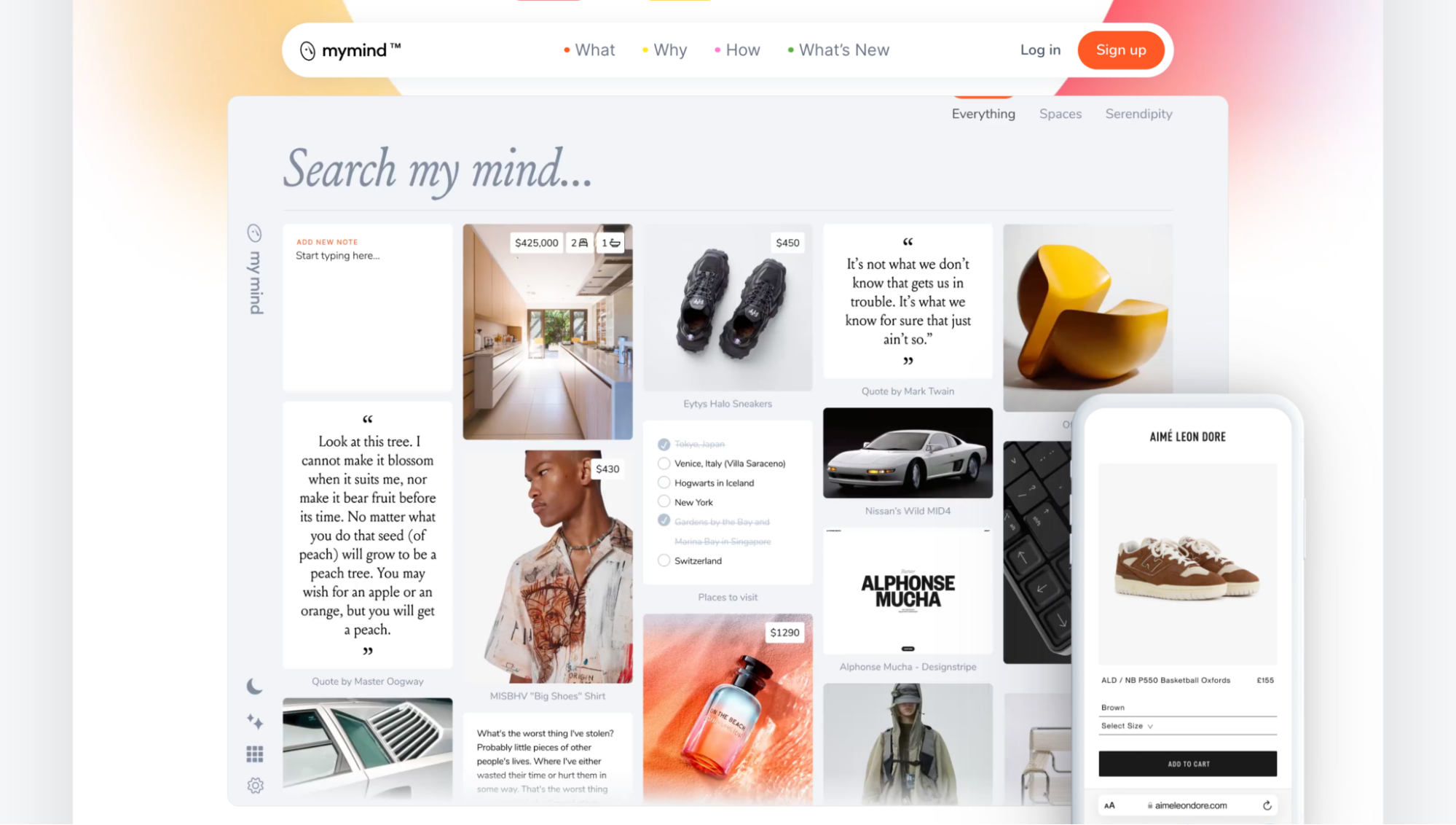
The next AI tool I tried was MyMind, a note-taking and bookmarking app that’s refreshingly different from the rest. Most productivity tools require you to spend time organizing, labeling, and categorizing everything you save—but MyMind eliminates that entirely. There are no folders, no labels—just a space where you can save anything (images, links, quotes, ideas) and let AI handle the organization.
I started using it to capture random inspirations—a design I liked, an interesting article, or a quote that sparked an idea. Normally, I’d either screenshot it and forget about it or dump it into Notion, where it’d get lost in a pile of notes. But with MyMind, I don’t need to categorize or tag anything. Later, when I need to find something, I just type a keyword, and it pulls up the exact thing I saved.
It’s like a second brain, but without the hassle of sorting and organizing everything manually. If you’re someone who constantly jots down ideas but never revisits them, this might actually change the way you work.
Gemini
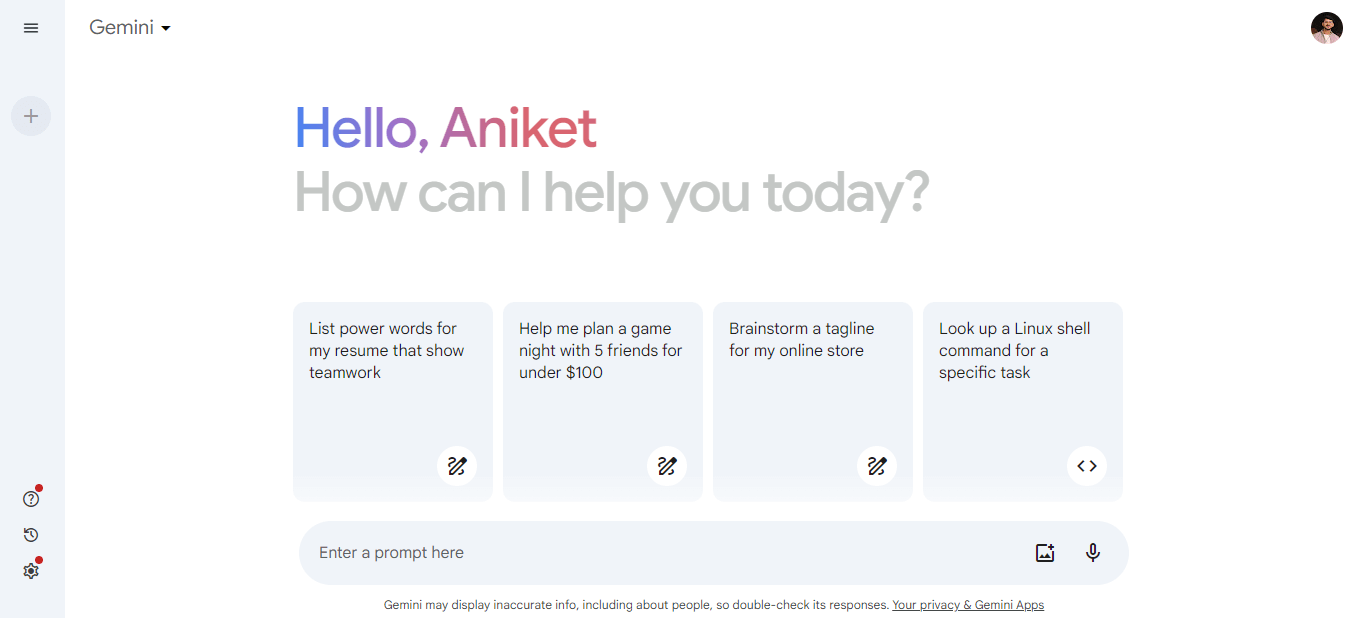
Gemini is Google’s AI assistant and one of the best AI chatbots, designed to help with research, writing, and problem-solving. On paper, it sounds like a powerful tool, but in practice, my experience was… mixed.
I really wanted to like Gemini. With Google’s vast data access, I expected it to deliver top-tier responses, but more often than not, it left me double-checking facts or rewording my questions to get something useful.
Where Gemini worked well
- Quick explanations – If I needed a basic breakdown of a topic, it did a decent job.
- Google integration – Since it’s built by Google, it naturally pulls from search and other tools.
- Multimodal capabilities – Unlike some AI tools, it can process both text and images, which is cool in theory.
Where it fell short
- Inconsistency – Sometimes, it nailed an answer. Other times, it gave vague or even incorrect information.
- Lack of depth – Compared to ChatGPT or Perplexity AI, its responses often felt shallow and lacked useful insights.
- Missed expectations – I expected something groundbreaking, but it didn’t feel like a significant leap from other AI tools.
I wouldn’t call it bad—it’s functional, and if you’re deep into the Google ecosystem, it might be a good option. But when it comes to AI assistants, I find myself reaching for ChatGPT or Perplexity AI first.
Your experience may vary, and depending on your use case, you might find it more useful than I did. While it didn’t quite meet my expectations, it could still be worth trying—you never know, it might work better for you.
Wrapping up: Fully AI-powered tools
That’s all about the fully AI-powered tools I use and how they help with productivity, research, and content creation. Each of these tools has its strengths and limitations, and the right choice depends on your workflow and preferences.
But AI isn’t just limited to standalone tools—many popular apps have started integrating AI as a feature rather than the core of their product. These tools may not be fully AI-driven, but they still use AI to enhance efficiency in specific tasks. Let’s take a look at some of them.
Tools that use AI without being fully AI-powered
While some tools are built entirely around AI, others integrate AI into specific features to enhance efficiency. These tools aren’t fully AI-driven (only about 10-30% of their functionality relies on AI), but they still offer great use cases that improve productivity.
Notion AI
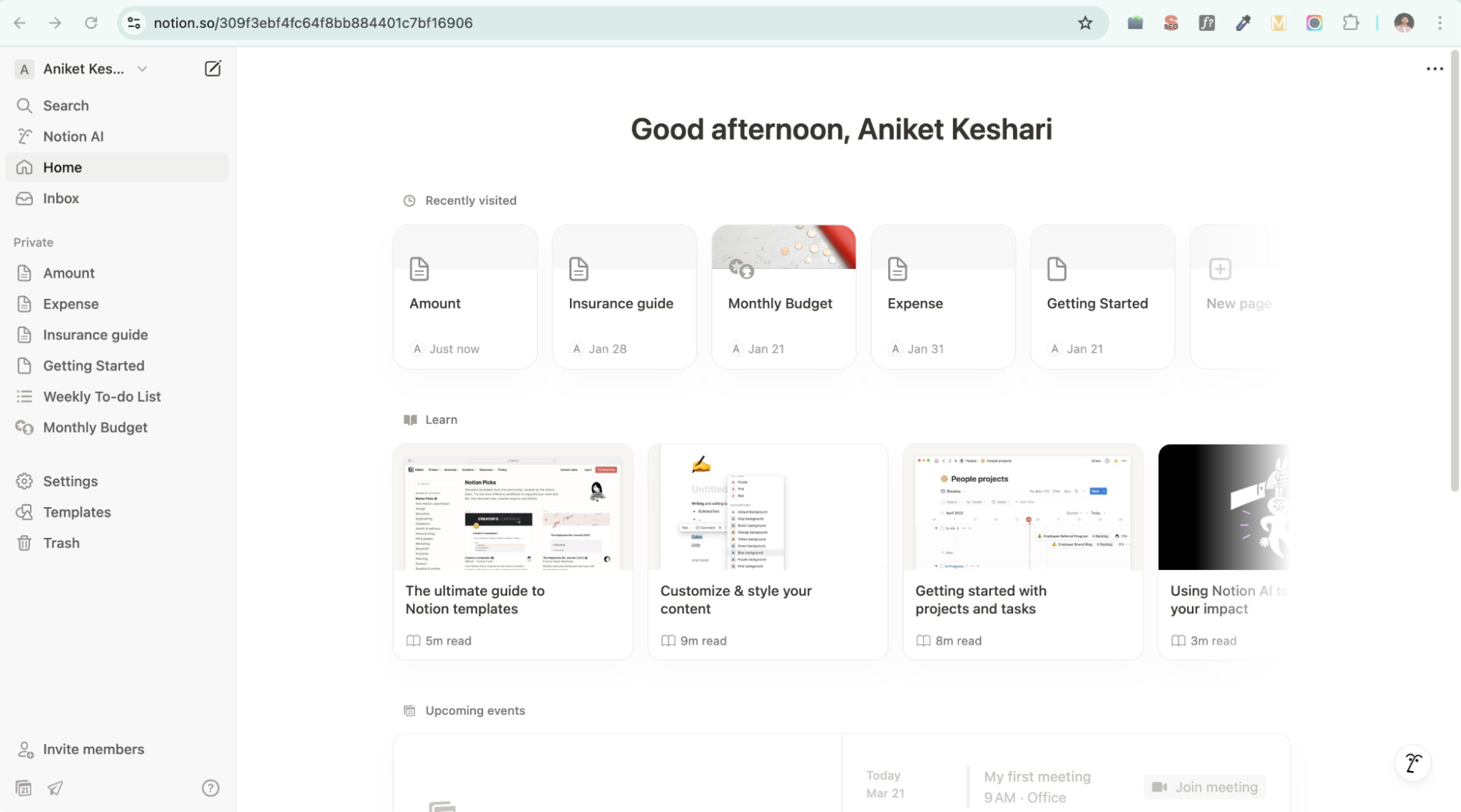
We’ve all been there—staring at a blank page, knowing we need to plan something but feeling completely stuck on where to start. Whether it’s organizing work projects, brainstorming content ideas, or just trying to keep up with daily tasks, the hardest part is often structuring everything in a way that makes sense.
For me, this was especially frustrating when planning content for the next month. I’d have scattered notes, half-finished ideas, and a general sense of direction—but pulling it all together into a clear, actionable plan? That was the real challenge.
That’s when I turned to Notion. I’d been using it for a while to manage projects, but when they introduced Notion AI, I wasn’t sure if it would actually help—or if it was just another AI add-on I’d try once and forget. Still, given my struggle with organizing ideas, I decided to test it—not for writing content, but for something much simpler: turning unstructured thoughts into something useful.
How Notion AI helped me?
As I mentioned that I use Notion to plan content for the next month. Let me share how it helped me in my daily life.
Scattered notes to structured plans
Instead of struggling to arrange my thoughts, I dumped everything into Notion AI—random ideas, key topics, rough outlines. It quickly turned them into a more structured format, saving me the mental effort of figuring out how to organize them myself.
Quick brainstorming boost
Sometimes, I’d ask Notion AI to suggest a few ways to approach a topic I was working on. To be honest, the results weren’t necessarily amazing or unique, but they were good enough to help me move forward instead of feeling stuck.
Summarizing long notes
Revisiting old notes can be a time-consuming process. I used Notion AI to summarize long pages of content into quick bullet points, helping me get the gist of things without rereading everything.
Is it worth using?
Notion AI is useful—but not essential. It doesn’t replace deep thinking or creativity, but it does help streamline the process of getting from messy thoughts to structured plans faster.
That said, I wouldn’t pay extra for it. The free version comes with a limited number of queries per month, which was enough for my needs. As long as I have access to that, I’ll keep using it when I need a push to organize my ideas—without overthinking.
Zapier AI

We all want to work smarter, not harder—but in reality, setting up automations can feel like a tedious, time-consuming task. You know the drill: manually connecting apps, figuring out triggers, testing, tweaking… and then realizing you forgot one crucial step.
For me, automation was always something I knew I needed, but actually building workflows? That was another story. I’d spend way too much time setting things up, only to realize there was probably a better (and faster) way to do it. That’s when I started exploring Zapier AI, one of the best AI marketing tools. I wanted to see if it could take the guesswork out of automation and make things a little less… well, manual.
How Zapier AI helped me?
Here’s how Zapier AI improved my automation process and saved me time.
Setting up workflows without overthinking
Instead of clicking through a dozen options, I just need to describe what I want in plain English—like “When I receive an email with an attachment, save it to Google Drive and notify me on Slack.” Zapier AI handled the setup, suggesting the right apps and steps automatically.
Fixing broken workflows (without frustration)
Anyone who’s used automation knows the pain of something not working and having no idea why. 😖Zapier AI helped troubleshoot issues by suggesting what might be wrong and offering fixes—saving me from endless trial and error.
Smarter suggestions I didn’t think of
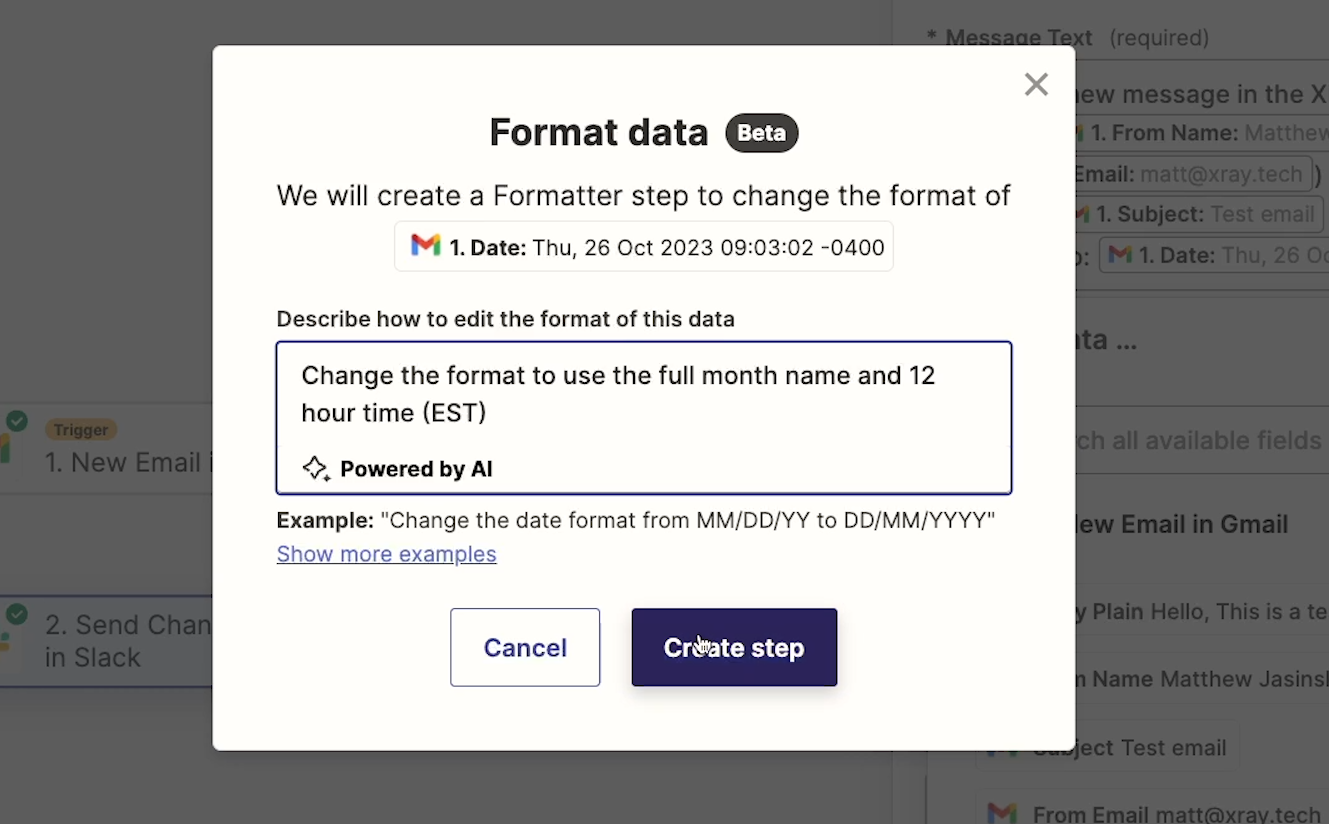
Sometimes Zapier AI suggested extra steps that actually made my workflows better. Like, “Change the date format from MM/DD/YY to DD/MM/YYYY”—something I hadn’t even thought of but ended up being super useful.
Is it worth using?
If you love automation but hate the setup, Zapier AI is a great addition, but it’s not a must-have if you’re already comfortable setting up workflows manually. It simplifies the process, but experienced users may not see a huge difference. Also, if you’re like me (new to automation) and want to spend less time figuring things out, it’s a pretty handy tool.
Grammarly AI
Do you like proofreading? No!
I too!
I write something, skim through it, and hit send, only to spot a mistake right after it’s too late. Or maybe the message just doesn’t feel right. Too formal? Too stiff? Did I accidentally sound like a robot?
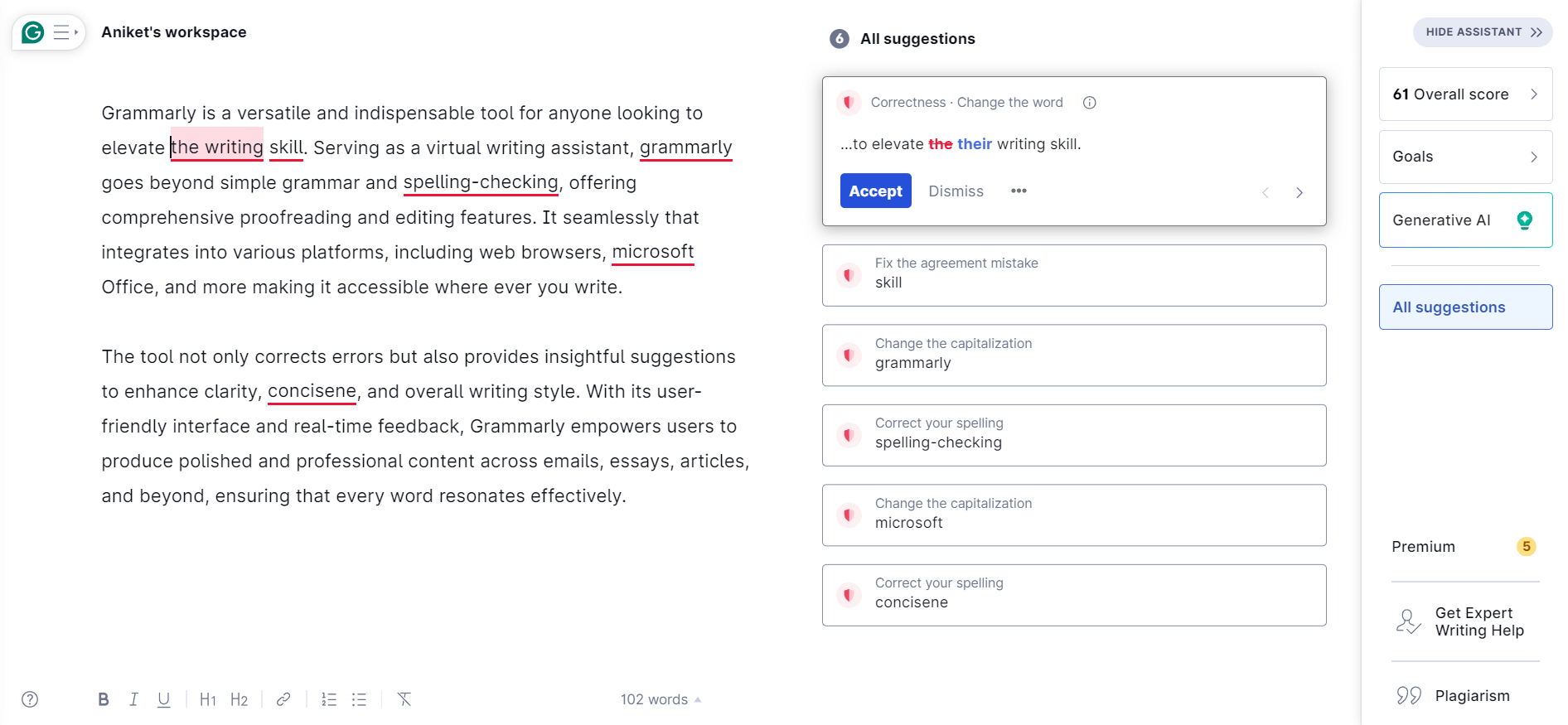
That’s where Grammarly AI comes in. It’s not just a spell checker—it actually helps make sure your writing sounds the way you want it to. Whether it’s catching typos, fixing clunky sentences, or adjusting the tone of an email, Grammarly has saved me from more than a few awkward moments (literally).
How Grammarly AI makes writing easier
Grammarly AI simplifies writing by correcting grammar, enhancing clarity, and suggesting better word choices.
Fixes the small (but embarrassing) mistakes
You know the ones—mixing up “your” and “you’re,” writing “defiantly” instead of “definitely,” or sending an email that starts with “Hi Brain” instead of “Hi Brian.” Grammarly picks up on these before anyone else does (hopefully before your boss does too 😀).
Helps messages sound natural
Ever written a message that sounded way too robotic? Or maybe you wanted to sound professional but ended up too serious? Grammarly suggests tweaks to make sure your tone actually matches what you’re trying to say.
Rewrites sentences when I’m stuck
Sometimes, you know what you want to say, but the sentence just isn’t working. Grammarly AI gives alternative suggestions—some better than others, but at least it helps get things moving.
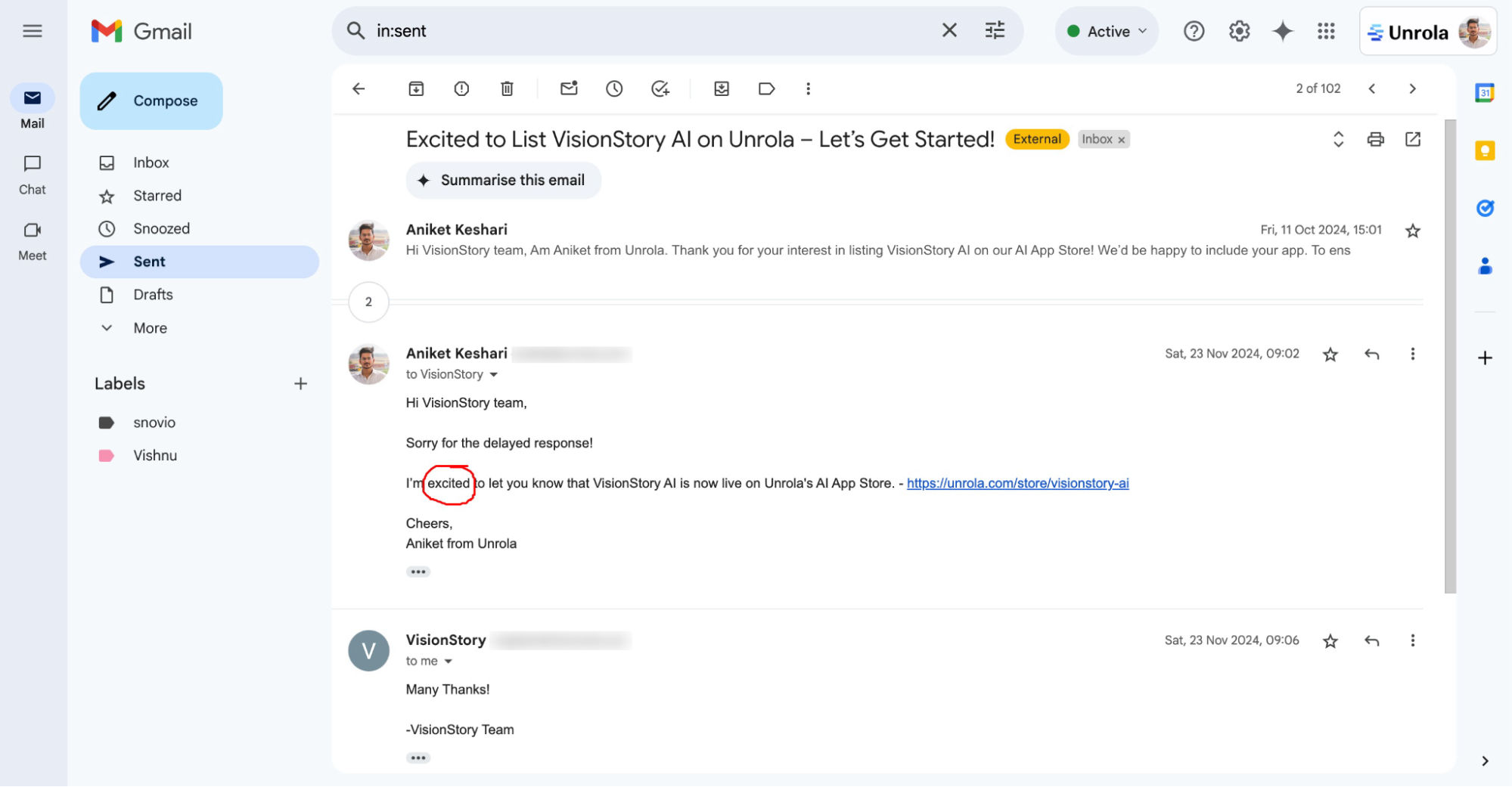
I once wrote an email that said:
“I’m existed to let you know that VisionStory AI is now live on Unrola’s AI App Store.”
Grammarly quickly pointed out that “existed” should be “excited.” A simple mix-up, but it completely changed the meaning of the sentence—imagine telling someone you exist instead of being excited! 😅
Should you use it?
If you write anything—emails, social posts, reports, or even casual messages—Grammarly AI is worth having. It won’t replace your own judgment, but it definitely makes writing smoother, clearer, and a little less stressful.
That’s all about the AI-powered tools I use in my workflow. Each of them has its strengths, and while none are perfect, they’ve definitely helped me work smarter, not harder.
What I learned from using AI daily
After a month of integrating AI into my workflow, here’s what I realized:
AI isn’t a replacement—it’s a shortcut. It speeds up the process, but I still have to think, make decisions, and refine the output. The more intentional I was with my prompts and inputs, the better the results. It’s not about blindly relying on AI but knowing when to let it assist and when to take over.
Not every AI tool is necessary. Some were genuinely helpful, while others felt like solutions to problems I didn’t have. In most cases, the free versions were enough—I didn’t need to pay for premium features to get value.
Would I keep using AI in my daily routine? Absolutely—but only the ones that truly add value. And that’s exactly why Unrola exists—to help people find AI tools that actually make life easier, without the hassle of figuring it out on your own. Because at the end of the day, AI should work for you, not the other way around.
As AI continues to evolve, the real challenge isn’t just finding the best tools—it’s knowing how to use them effectively. And if you’re looking for more such exciting AI tools and alternatives, Unrola is the place to start.
